Notes and exercises for beginning CAD class.
In this class we use Layerling, a free online tool designed for educational purposes. There are other free tools that an engineer would like better, but this is best for beginners and I still use it for many of my own designs.
Once you have learned the essentials and are wanting something more powerful I recommend FreeCAD for the more visually inclined, or OpenSCAD if you want a programming language that converts your instructions into shapes.
Some of our examples import SVG files to create flat shapes. Inkscape is the best free tool to produce your own SVG files.
We don’t use generative AI in this class. What you do at home is your business.
Downloads used in the class
From thingiverse.com, thanks to willie.
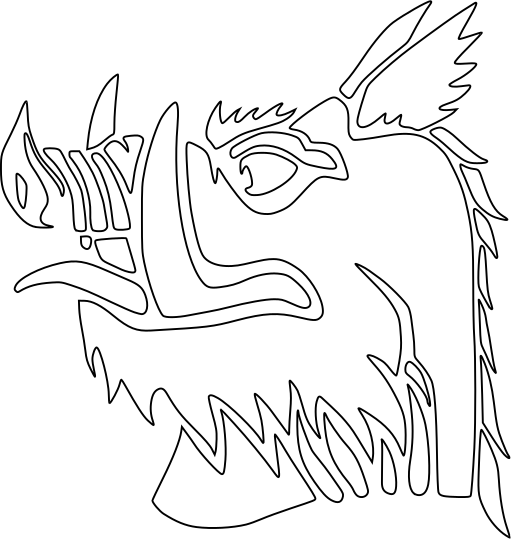
The crest of the Black Knight from the movie Monty Python and the Holy Grail.

Outline of a key head for creating a key identifier tag.
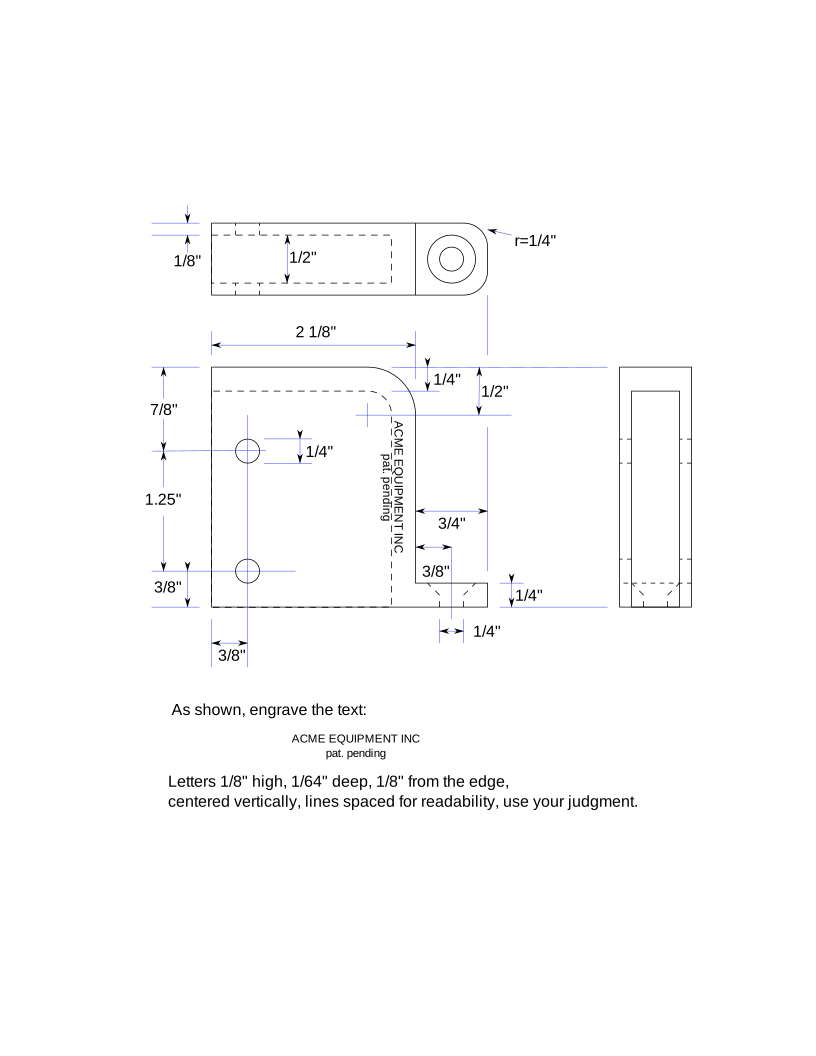
Specification for part to be created for one of the exercises.
Exercise: robot head
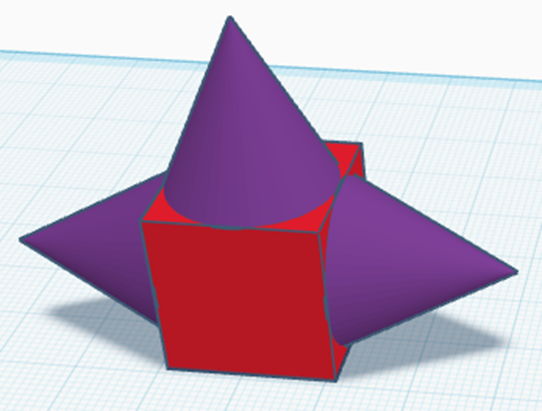
Add a cube to the workspace, then stick a cone on each of three sides to make a pointy robot head.
Use the Align function (L) to center the cones on the faces. Note: after starting the align operation, you can click one of the shapes to make it stationary and align the other parts in relation to it.
Resize if you like.
Exercise: open-topped box
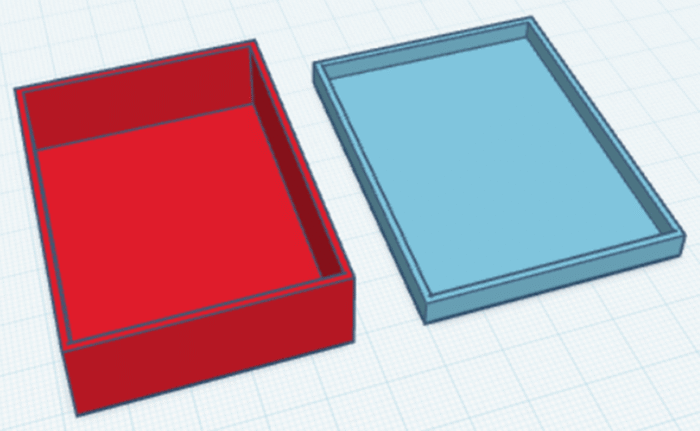
- Create a box 45 x 60 x 16mm (exterior), with open top and sides 1mm thick.
- Extra credit: Create lid that fits with .5mm leeway (i,e, the opening is .5mm more than the outside dimensions of the box) and is 5mm tall, 1mm wall thickness.
Remarks on exercise
- An open-topped box can be made either by grouping five flat boxes (one each for the bottom and four sides), or by making a box and subtracting a slightly smaller box from it. In Tinkercad language, we would say we group two boxes, one of which is a hole.
Exercise: intersection
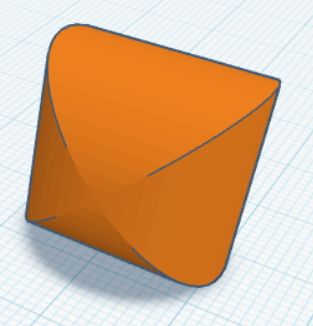
- Create a shape which is the intersection of two cylinders at right angles to each other.
- The dimensions of the resulting shape should be 20x20x20mm.
Remarks on exercise
Tinkercad doesn’t have a built-in “intersect” operation. You cut away from one shape by “grouping” it with a “hole” shape. So to intersect two objects, you need a “hole” shaped like what you want to subtract, which in this case is everything but the second object.
Exercise: coffee mug
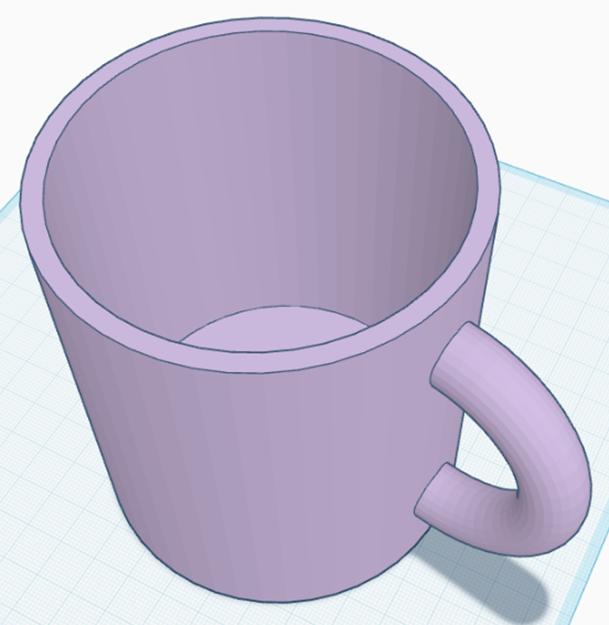
- Create a mug 100mm tall, 90mm outer diameter, with walls 4mm thick.
- The handle is shaped like a half-torus, 14mm thick and 70mm high. It is centered vertically on the side of the mug (i.e. 10mm from the table).
- Extra credit: round the lip and interior corners.
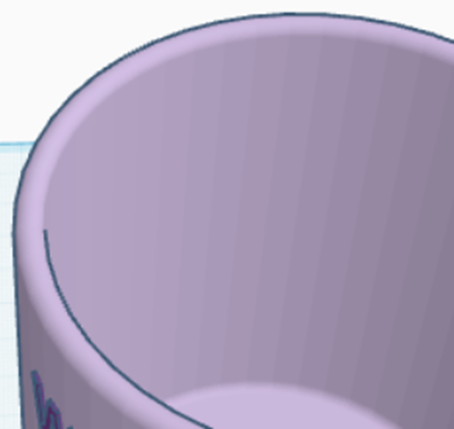
Remarks on exercise
- As with the open-topped box, you have a couple choices how to do this — the body of the mug could be a cylinder with a cylindrical hole, or it could be a cylinder for the bottom, and a tube for the sides. Which is better in this case?
- Using bevels to round corners is great if the shape you’re using supports bevels where you want them. The “extra credit” exercise is not one of those cases. If you’re stumped, consider that the rounded edge of the rim is shaped like… half of a torus.
Exercise: Black Knight’s coffin
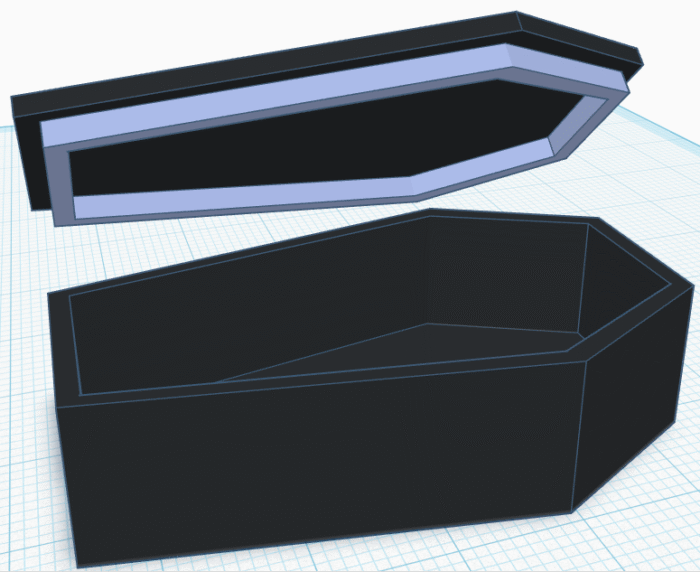
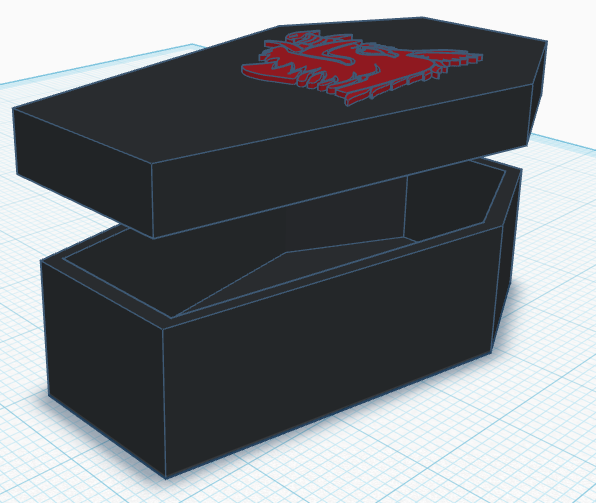
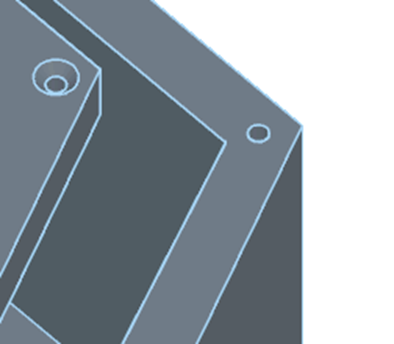
- Download the file crest.svg, above.
- Create a new 3D design and import this file.
- Use the Sketch tool to create a coffin for the Black Knight, and emboss this crest on its lid.
- This is an art project, so eyeball the dimensions, but make the lid fit nicely.
- Consider alternate lid designs.
- Extra credit: Add a series of tiny screw holes around the edge with countersunk heads, to secure the lid so the Black Knight cannot escape.
Remarks
Remember you can use C to create a handle to drag shapes onto the faces of other shapes.
Rather than sketch the same shape multiple times in different sizes, duplicate and resize.
How much leeway do you need to allow to make the lid fit snugly?
Is there a design where you don’t especially have to worry about that tolerance?
Example: Braille key sleeve
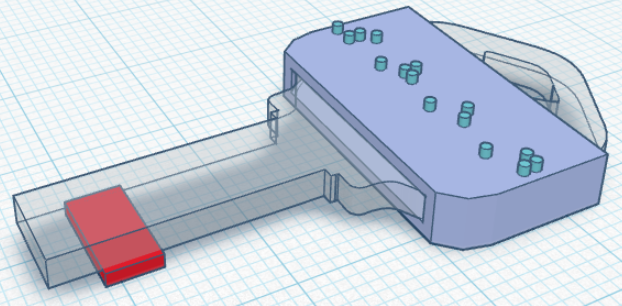
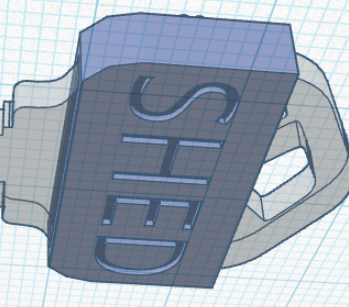
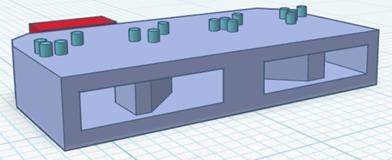
Use the file kwikset-3-holes.svg, above. This is your guide for creating a sleeve that will fit the key and not come off. Take advantage of the holes in the key head to make a shape that passes through the holes to keep it in place. You can make the printer pause to let you insert the key during printing, and the key then supports the next layer to cover and enclose it.
The task in this case is to make a key sleeve for a standard type of house key, with a Braille label on one side and regular text on the other.
Exercise: importing 3D shapes
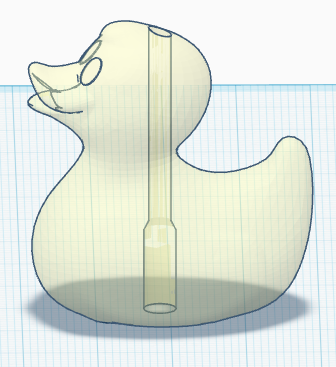
- Download “Rubber Duck.stl” file from above.
- Import this file into a new 3D project.
- Scale it to 40mm height, preserving ratio.
- Make a vertical hole through it, big enough for a #6 ball chain – 2.9mm + a little slop.
- At bottom, widen hole to fit a ball chain connector – 4.5mm x 11mm.
- Slant the sides where the hole narrows – don’t have an overhang.
Remarks
The hole is shaped like a cylinder, a cone, and a cylinder. Make sure the number of sides matches to avoid weird little overhangs
Exercise: Nut and Bolt
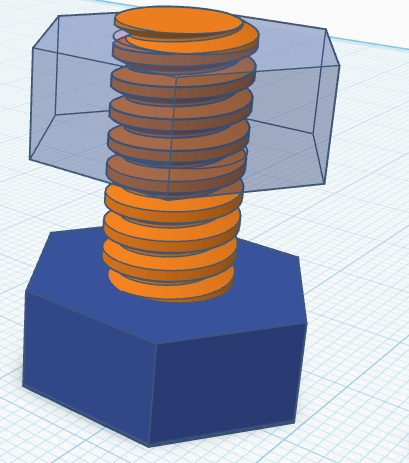
Design a hex head bolt and a nut that will screw onto it.
Allow leeway for printer imprecision.
Design for easy printing by not making the threads overhang unreasonably.
Make sure the threads are in the conventional handedness, i.e. “righty-tighty”.
Remarks
Most bolts you can buy at the hardware store have sharp ridges. This makes sense for metal, which can be precisely machined. Having a flat bit at the tops of the ridges and the bottom of the valleys makes printing easier.
Referring to the two sets of threads that must mesh, one goes on the outside of the other. It’s easier to make them match if you add
Exercise: Sheriff badge (challenging)
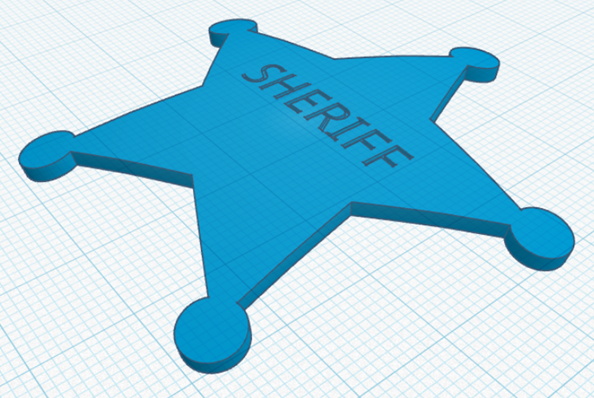

- Create star-shaped badge with SHERIFF engraved on it. It should be as if cut from a spherical shell of 150mm radius.
- If you can, make the edges tilt out as shown.
- Suggested dimensions:
- roughly 60x60mm and 2mm thick
- Engraving .5mm deep, not deeper in middle of word.
- Little circles 7mm diameter
- Hints:
- Sometimes you need to add to a shape to change the center of rotation.
- A five-pointed star is hard to align on center – why?
- There’s a basic shape to make a star-shaped cone.
Remarks
To make this work, you need to intersect some shapes — either cylinders and a star, or cones and a star-shaped cone (which is a basic shape) — with a spherical shell.
Since Tinkercad has no intersect operation, this needs you to make a hole shape that has a spherical-shell-shaped hole in it.
To keep the text from being cut deeper in the center of the word, it also needs you to operate on it with a sphere.