This tutorial uses the free 3D CAD online tool, Layerling. Tinkercad users may also find it helpful, and the concepts are general.
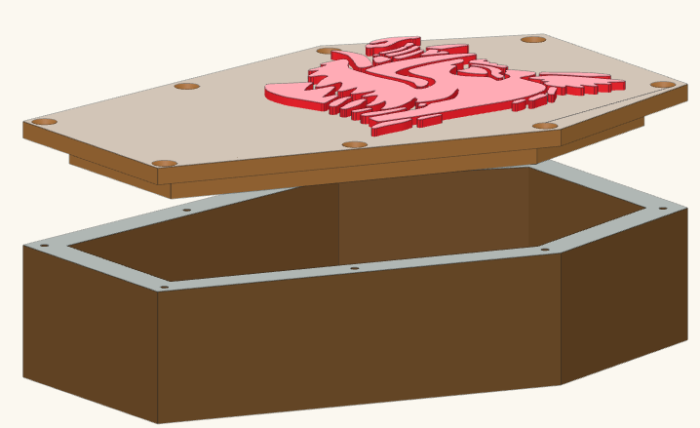
The assignment was to create a coffin with a fitted cover, including countersunk screw holes, and add a crest on the cover from an imported SVG file.
I’m going through the construction step by step to illustrate the concepts and discuss alternative ways of accomplishing the same goals.
Create the outline
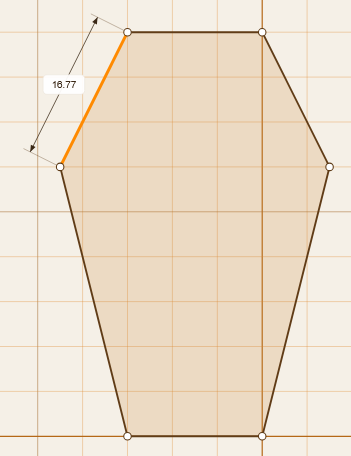
I used the “Extrude Sketch” tool to create the basic coffin shape. Using snapping and comparing the dimensions of sides that are supposed to be the same length is a good way to ensure symmetry.
Click “Finish sketch” to complete the exterior shape of the box.
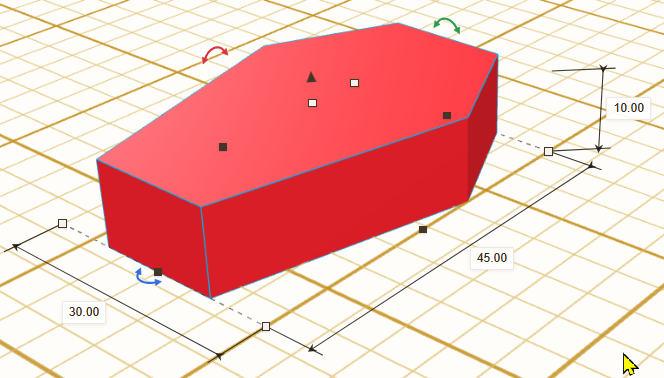
This is a reference shape we’ll need multiple times during this construction, so maybe make a duplicate of it off to the side.
The Box

The box will have sides of even thickness and a bottom ditto. In Layerling, this is easy to do with the Hollow tool. Specify a thickness large enough to accommodate screws to hold the cover down.
Another way to make a box out of a shape is to create a hole the size and shape of the interior opening and group it with the shape. The trouble is that if the shape is even a little complex, creating that hole isn’t straightforward.
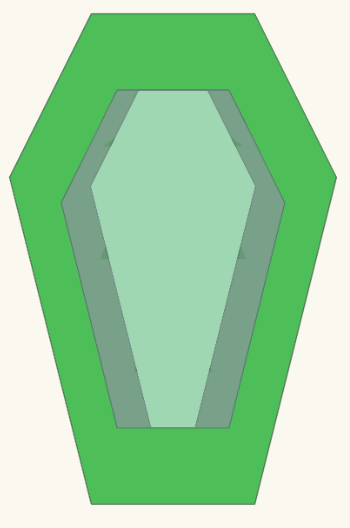
This image shows (going from the outside in) the original outline, the original outline evenly scaled down to 14mm less than the original height, and the opening created by the Hollow operation with 7mm-thick walls. As you can see, the last two aren’t close to the same, though they are the same height.
We’ll add the screw holes in a later step, because that’s easier to do with the lid in place.
The Lid
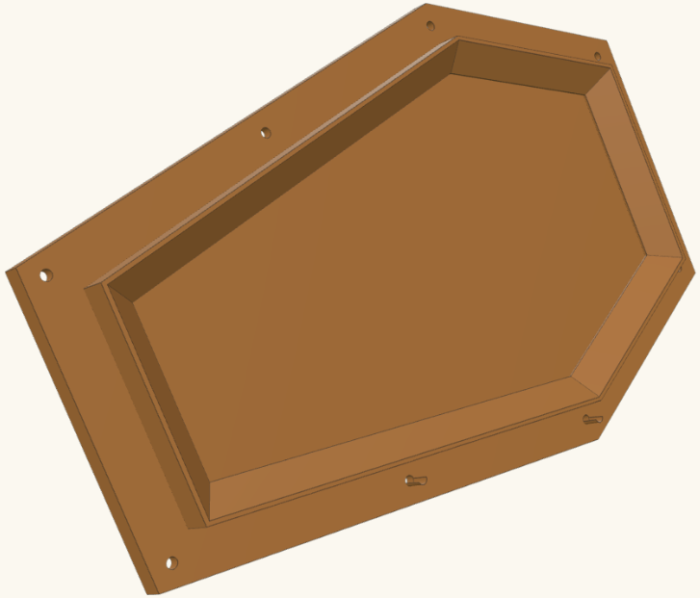
The vision for the lid is that it will be a flat slab the exact size of the coffin box, with an inner rim that fits snugly into the top opening of the box.
To fit snugly doesn’t mean the inner rim is exactly the size of the opening in the box. That would be too snug. The problem is that 3D printers have a certain degree of imprecision. If you print an object, and a hole the exact same size and shape, the object will not fit in the hole. You must make the hole a teensy bit bigger. How much bigger depends on your printer, filament, and settings. How precise is the printer? How gloppy is the filament when you melt it to squish through the nozzle? “Gloppy” and “squish”, you may notice, aren’t terms that inspire confidence in the exact precision of the output.
So the exact figure may vary, and may require experimentation to determine for a particular setup, but let’s be conservative and say that for this project, we want to give 0.2mm extra space all around.
As we saw with the box, the Hollow tool is a way to generate a shape that’s “x” distance from a given outline along each edge. For the box, that X was (let’s say) 4mm. So we want the projecting part inside the lid to be offset 4.2mm in from the outer shape. However, Hollow carves out a hole, whereas we want to make a solid the same size as the hole.
There fortunately is a tool for that. The Face tool lets you choose a face and pooch out or cut in a shape offset from the edges of that face. So, duplicate your reference coffin outline, set it the height you want for the main part of the cover, then use the Face tool to bump it out with a 4.2mm inset.
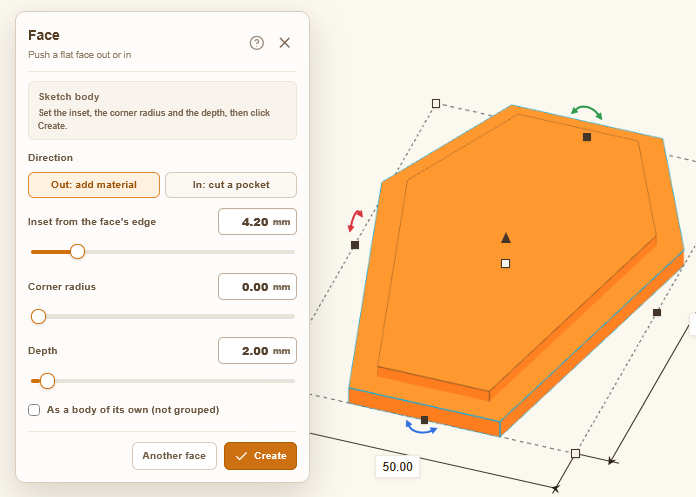
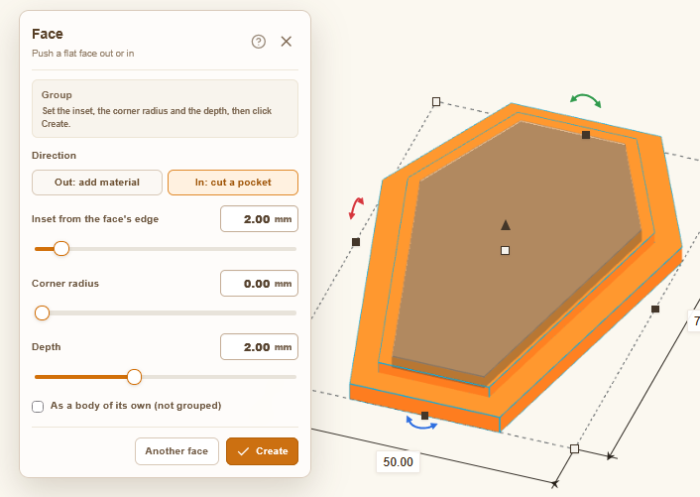
Now, I don’t really want to take up the space and use all that extra material when all I really need is a little rim. So let’s hollow out that bumped-out area to make it just a 2mm outline. Use Face again on the same object, and this time select the new face we just created, and the “in” button.
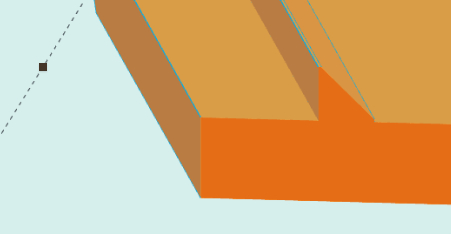
This will do nicely for the inner lid, but if you want to show off you can continue to apply more transformations. Let’s add chamfers to selected edges.
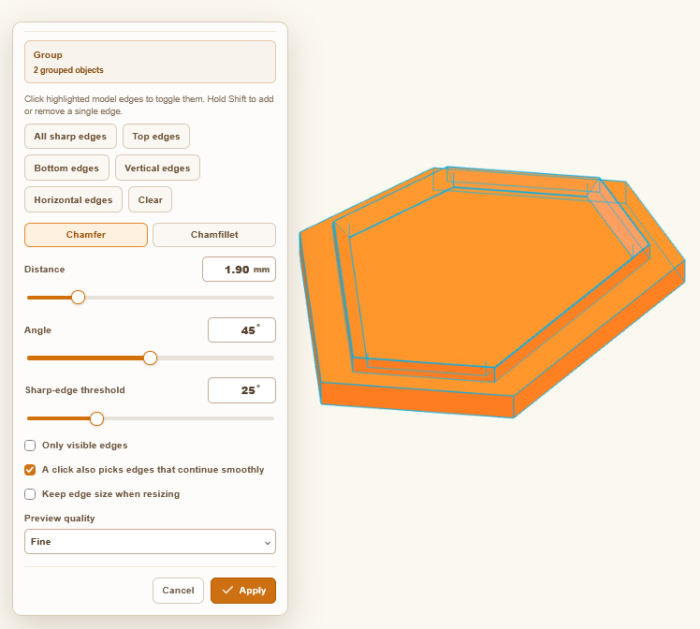
Shown here in cross-section:
Fit test
Now that we have a cover and a box, it makes sense to just check that the cover really does fit on the box. One might use a copy of one of the parts to test fit, if you don’t want to have to reorient the original, but in this case it’ll be easier to make the screw holes line up if the box is assembled when we add them, so I’ll reposition the original cover onto the box.
Select the cover, use the Align faces tool, and select the two faces you want to align — the upper rim of the box and the rim of the cover.
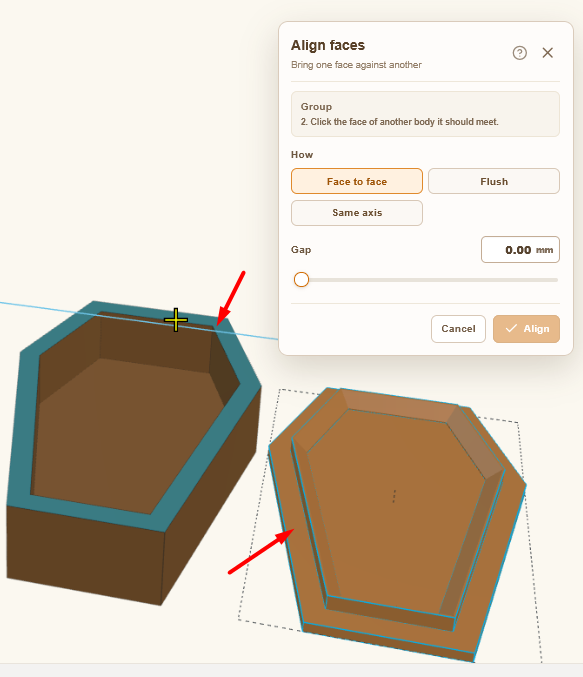
That puts the cover face down and at the right height that it would be if it were on the box. Now use Align (L) to put it in the right X/Y position.
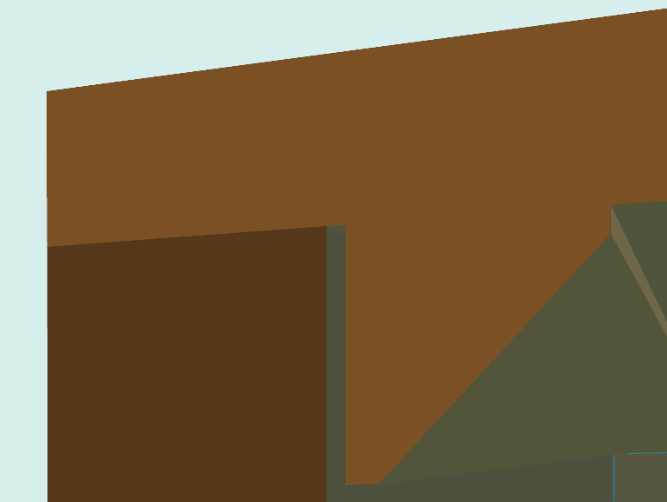
In the view controls, you can now use the Section view to take cross sections of the parts to confirm there’s a small gap where the insert goes into the interior of the box — but not too small.
Countersunk Screw Holes
Now that the parts are aligned, we can make holes to accommodate small screws to secure the parts together and make sure nobody gets out on Halloween. Layerling has a special shape for this: the Countersink. I’ll create one and drop it on the cover.

The default size is too large for this small model. Let’s make a prep hole with a 1mm shaft, 3mm head, and 8mm long. Also change it to a hole, and use Align faces to make it flush with the surface.
Duplicate the result and place them around the edge wherever seems right. I’m just going to eyeball this one. You might want to lock the cover (Ctrl+L) to make it easier to select and move things on it. I suggest placing screw holes on just one half, then duplicating and mirroring them to copy that to the other half.
Once the screws are where you like them, group them, and duplicate them. Now you can group one set of countersink holes with the cover, and one with the box.
Decoration
The assignment in this case calls for the cover to be decorated with a crest imported from an SVG file. Here’s the file:
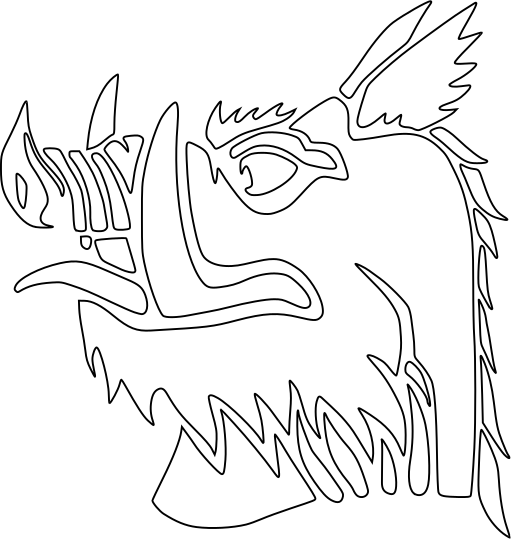
I just used the Import function (Ctrl+I) to add it to the workspace, sized it, and used C to drop it on top of the lid.